Advanced MS Project: Agile Project Management Course
At a glance
- Duration
- 5 days
- Format
- Classroom
- Cities
- London, New York, Abu Dhabi, Nice, Nairobi, Singapore and more
- Next session
- 5 – 9 October 2026, London
- Average fee
- 5,800 €
Overview
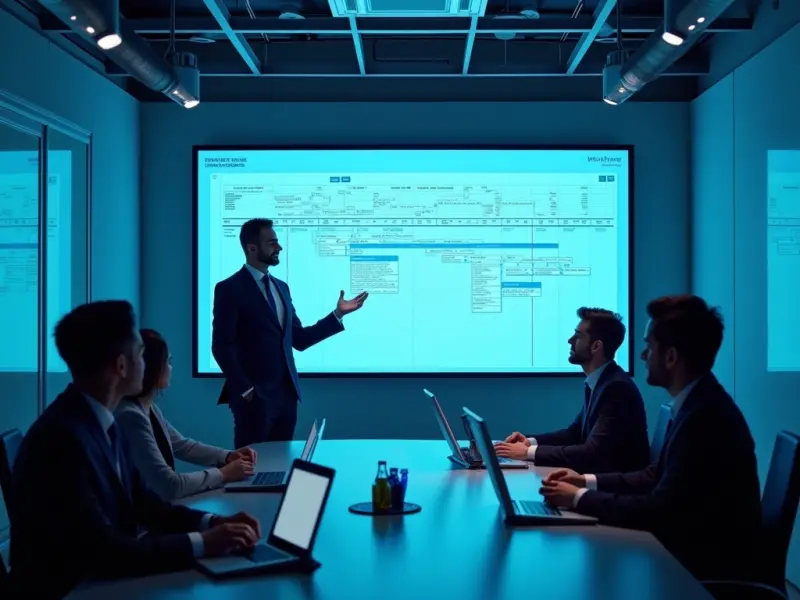
Microsoft Project users often stop at Gantt bars and manual dates, and miss the features that make a schedule trustworthy. This Advanced MS Project course takes experienced users into the engine of the software: task types and the Work = Duration x Units formula, effort-driven behaviour, auto versus manual scheduling, the Team Planner, resource pools, custom fields with formulas, inserted subprojects, and the Task Board used for sprints in Project Online and Project for the web. Every session is hands-on at the keyboard, working on one sample project file that grows from a blank template to a tracked, reported, multi-project plan. This course is delivered by Agile Leaders Training Center.
Who Should Attend
- Existing Microsoft Project users who want to move past basic task lists.
- Project schedulers and planners maintaining .mpp files for large programmes.
- PMO analysts who build templates, custom views and status reports in MS Project.
- IT and software project leads who run sprints alongside a Gantt plan.
- Team leads who must share resources between several MS Project files.
Departments and Industries
The course suits any team that standardises on the Microsoft 365 project stack.
- PMO and planning teams in IT, telecoms and professional services
- Engineering departments using MS Project for design and delivery plans
- Marketing and event teams running campaign schedules
- Research and product development groups
- Government programme offices on Microsoft 365
Learning Objectives
By the end of this course, participants will be able to:
- Apply fixed units, fixed work or fixed duration task types to control how MS Project recalculates.
- Build reusable templates with custom calendars, fields, tables, filters, groups and views.
- Use the Team Planner, Resource Usage view and leveling options to fix overallocations.
- Analyse multiple baselines and interim plans through the variance columns.
- Build a master project of inserted subprojects linked to a shared resource pool file.
- Use the Task Board and Sprints view to run sprints and report them next to the Gantt timeline.
Course Agenda
Day 1: Inside the Scheduling Engine
- Project options, auto versus manually scheduled tasks and the status date
- Task types, effort-driven scheduling and the work formula in practice
- Project, resource and task calendars with working-time exceptions
- Summary tasks, milestones, recurring tasks and task inactivation
- Dependency types, lags, leads and constraints that pin dates
Day 2: Resources in MS Project
- Work, material and cost resources, max units and availability contours
- Assignment work contours and the Task Usage view
- Team Planner drag-and-drop reassignment
- Reading overallocation in the Resource Usage and Resource Graph views
- Leveling options, leveling delay and the Leveling Gantt
Day 3: Baselines, Tracking and Multiple Files
- Saving Baseline 0 to 10 and interim plans
- Updating progress with the Tracking table, Update Project and the status date
- Reading work, cost and date variance columns against the baseline
- Inserted subprojects, master files and cross-file links
- Resource pool files: sharing, refreshing and resolving conflicts
Day 4: Agile Features in Project Online and Project for the Web
- Creating sprints and assigning tasks in the Sprints view
- Task Board columns, cards and the Current Sprint board
- Mixing agile and Gantt tasks in one project file
- Reporting sprint progress with the built-in agile reports
- Syncing with Microsoft Teams and Planner
Day 5: Customisation and Reporting
- Custom fields with formulas, lookup tables and graphical indicator icons
- Building custom tables, filters, groups and views in the Organizer
- Built-in and custom reports, Timeline view and copying to PowerPoint
- Exporting to Excel and Power BI templates for dashboards
- Walk-through of scenario-style questions on MS Project features
Practical Exercises
All suggested activities are completed in Microsoft Project on the sample file built during the week.
- Suggested activity: change task types on the same task and predict how MS Project recalculates work and duration.
- Suggested activity: clear red-person overallocation icons using the Team Planner and leveling options.
- Suggested activity: merge three department files into a master project linked to one resource pool.
- Suggested activity: add a two-sprint agile phase to a traditional plan and report it on one timeline.
FAQs
Which version of Microsoft Project is used?
Exercises use Project Professional desktop; the agile module also demonstrates Project Online and Project for the web, noting which features exist in each.
Is this course suitable for beginners?
Participants should already be able to create tasks, link them and assign resources. The course starts from task types and calendars, not from the ribbon basics.
Does the course include practice questions?
Yes. Day 5 includes a walk-through of scenario-style questions on the features covered, useful for anyone who needs to demonstrate MS Project skills at work.
Conclusion
Participants leave with a working template, a set of custom views and a clear understanding of why MS Project moves their dates, so their schedules become tools they trust rather than drawings they update by hand, and a master plan linked to a resource pool they can reuse on their next programme.
credits: 5 credit per day
Course Mode: full-time
Provider: Agile Leaders Training Center
-
Events for this Course
-
London 5 – 9 October 2026
-
New York 12 – 16 October 2026
-
Abu Dhabi 19 – 23 October 2026
-
Nice 26 – 30 October 2026
-
Nairobi 1 – 5 November 2026
-
Singapore 2 – 6 November 2026
-
Trabzon 15 – 19 November 2026
-
Porto 16 – 20 November 2026
-
Marbella 29 November – 3 December 2026
-
Johannesburg 13 – 17 December 2026
-
Abu Dhabi 21 – 25 December 2026
-
Casablanca 28 December 2026 – 1 January 2027
-
Baku 28 December 2026 – 1 January 2027
-
Istanbul 4 – 8 January 2027
-
Sharm El-Sheikh 11 – 15 January 2027
-
Madrid 11 – 15 January 2027
-
Riyadh 17 – 21 January 2027
-
London 18 – 22 January 2027
-
Langkawi 24 – 28 January 2027
-
Kuala Lumpur 25 – 29 January 2027
-
Montreux 25 – 29 January 2027
-
Barcelona 1 – 5 February 2027
-
Milan 1 – 5 February 2027
-
Cairo 8 – 12 February 2027
-
Geneva 14 – 18 February 2027
-
Al Jubail 14 – 18 February 2027
-
Dubai 22 – 26 February 2027
-
Tokyo 1 – 5 March 2027
-
Prague 1 – 5 March 2027
-
Paris 8 – 12 March 2027
-
Madrid 8 – 12 March 2027
-
Athens 15 – 19 March 2027
-
Doha 21 – 25 March 2027
-
Rome 22 – 26 March 2027
-
Kuwait 28 March – 1 April 2027
-
Tashkent 4 – 8 April 2027
-
Istanbul 5 – 9 April 2027
-
San Diego 5 – 9 April 2027
-
Bangkok 11 – 15 April 2027
-
Amsterdam 12 – 16 April 2027
-
Manama 18 – 22 April 2027
-
Dubai 19 – 23 April 2027
-
Vienna 26 – 30 April 2027
-
Accra 2 – 6 May 2027
-
London 10 – 14 May 2027
-
Bali 16 – 20 May 2027
-
Barcelona 24 – 28 May 2027
-
Frankfurt 24 – 28 May 2027
-
Paris 31 May – 4 June 2027
-
Lisbon 31 May – 4 June 2027
-
Zanzibar 6 – 10 June 2027
-
Milan 7 – 11 June 2027
-
Amman 13 – 17 June 2027
-
Dubai 14 – 18 June 2027
-
Phuket 20 – 24 June 2027
-
Berlin 21 – 25 June 2027
-
Tbilisi 28 June – 2 July 2027
-
Abu Dhabi 28 June – 2 July 2027
-
Muscat 4 – 8 July 2027
-
Amsterdam 5 – 9 July 2027
-
Munich 12 – 16 July 2027
-
London 19 – 23 July 2027
-
Manama 25 – 29 July 2027
-
Cairo 26 – 30 July 2027
-
Zoom 2 – 6 August 2027
-
Kuala Lumpur 9 – 13 August 2027
-
Vienna 16 – 20 August 2027
-
Cape town 22 – 26 August 2027
-
Abu Dhabi 23 – 27 August 2027
-
Amsterdam 30 August – 3 September 2027
-
Jakarta 6 – 10 September 2027
-
Dubai 13 – 17 September 2027
-
Seoul 13 – 17 September 2027
-
Toronto 19 – 23 September 2027
-
Chicago 26 – 30 September 2027
-
Rome 4 – 8 October 2027
| Image | Location | Dates | Duration | Mode | Price | Actions |
|---|---|---|---|---|---|---|

|
London |
Week 41, 2026 5 – 9 October 2026 |
5 Days | Onsite | €5,700 | |

|
New York |
Week 42, 2026 12 – 16 October 2026 |
5 Days | Onsite | €12,000 | |
|
Abu Dhabi |
Week 43, 2026 19 – 23 October 2026 |
5 Days | Onsite | €4,700 | |

|
Nice |
Week 44, 2026 26 – 30 October 2026 |
5 Days | Onsite | €5,700 | |

|
Nairobi |
Week 44, 2026 1 – 5 November 2026 |
5 Days | Onsite | €4,500 | |

|
Singapore |
Week 45, 2026 2 – 6 November 2026 |
5 Days | Onsite | €5,700 | |
|
Trabzon |
Week 46, 2026 15 – 19 November 2026 |
5 Days | Onsite | €6,800 | |

|
Porto |
Week 47, 2026 16 – 20 November 2026 |
5 Days | Onsite | €5,700 | |

|
Marbella |
Week 48, 2026 29 November – 3 December 2026 |
5 Days | Onsite | €5,700 | |

|
Johannesburg |
Week 50, 2026 13 – 17 December 2026 |
5 Days | Onsite | €4,500 | |
|
|
Abu Dhabi |
Week 52, 2026 21 – 25 December 2026 |
5 Days | Onsite | €4,700 | |

|
Casablanca |
Week 53, 2026 28 December 2026 – 1 January 2027 |
5 Days | Onsite | €4,100 | |

|
Baku |
Week 53, 2026 28 December 2026 – 1 January 2027 |
5 Days | Onsite | €5,000 | |

|
Istanbul |
Week 01, 2027 4 – 8 January 2027 |
5 Days | Onsite | €4,500 | |

|
Sharm El-Sheikh |
Week 02, 2027 11 – 15 January 2027 |
5 Days | Onsite | €4,100 | |

|
Madrid |
Week 02, 2027 11 – 15 January 2027 |
5 Days | Onsite | €5,700 | |

|
Riyadh |
Week 02, 2027 17 – 21 January 2027 |
5 Days | Onsite | €5,700 | |
|
|
London |
Week 03, 2027 18 – 22 January 2027 |
5 Days | Onsite | €5,700 | |

|
Langkawi |
Week 03, 2027 24 – 28 January 2027 |
5 Days | Onsite | €6,000 | |

|
Kuala Lumpur |
Week 04, 2027 25 – 29 January 2027 |
5 Days | Onsite | €5,200 |
Frequently asked questions
What does this course cover?
OverviewMicrosoft Project users often stop at Gantt bars and manual dates, and miss the features that make a schedule trustworthy. This Advanced MS Project course takes experienced users into the engine of the software: task types and the Work = Duration x Units formula, effort-driven behaviour, auto versus manual scheduling, the Team Planner, resource po…
Are training dates available?
Yes. Available dates and destinations are listed in the course dates section on this page.
How can I register?
Choose an available date on this page and complete the registration form, or send a programme enquiry.
Can I download the course brochure?
Yes. Use the brochure download link provided on this page.
This course by city
- Agile PM and Project Management Training Courses in Abu Dhabi
- Agile PM and Project Management Training Courses in Accra
- Agile PM and Project Management Training Courses in Al Jubail
- Agile PM and Project Management Training Courses in Amman
- Agile PM and Project Management Training Courses in Amsterdam
- Agile PM and Project Management Training Courses in Athens
- Agile PM and Project Management Training Courses in Baku
- Agile PM and Project Management Training Courses in Bali
- Agile PM and Project Management Training Courses in Bangkok
- Agile PM and Project Management Training Courses in Barcelona
- Agile PM and Project Management Training Courses in Berlin
- Agile PM and Project Management Training Courses in Cairo
- Agile PM and Project Management Training Courses in Cape town
- Agile PM and Project Management Training Courses in Casablanca
- Agile PM and Project Management Training Courses in Chicago
- Agile PM and Project Management Training Courses in Doha
- Agile PM and Project Management Training Courses in Dubai
- Agile PM and Project Management Training Courses in Frankfurt
- Agile PM and Project Management Training Courses in Geneva
- Agile PM and Project Management Training Courses in Istanbul
- Agile PM and Project Management Training Courses in Jakarta
- Agile PM and Project Management Training Courses in Johannesburg
- Agile PM and Project Management Training Courses in Kuala Lumpur
- Agile PM and Project Management Training Courses in Kuwait
- Agile PM and Project Management Training Courses in Langkawi
- Agile PM and Project Management Training Courses in Lisbon
- Agile PM and Project Management Training Courses in London
- Agile PM and Project Management Training Courses in Madrid
- Agile PM and Project Management Training Courses in Manama
- Agile PM and Project Management Training Courses in Marbella
- Agile PM and Project Management Training Courses in Milan
- Agile PM and Project Management Training Courses in Montreux
- Agile PM and Project Management Training Courses in Munich
- Agile PM and Project Management Training Courses in Muscat
- Agile PM and Project Management Training Courses in Nairobi
- Agile PM and Project Management Training Courses in New York
- Agile PM and Project Management Training Courses in Nice
- Agile PM and Project Management Training Courses in Paris
- Agile PM and Project Management Training Courses in Phuket
- Agile PM and Project Management Training Courses in Porto
- Agile PM and Project Management Training Courses in Prague
- Agile PM and Project Management Training Courses in Riyadh
- Agile PM and Project Management Training Courses in Rome
- Agile PM and Project Management Training Courses in San Diego
- Agile PM and Project Management Training Courses in Seoul
- Agile PM and Project Management Training Courses in Sharm El-Sheikh
- Agile PM and Project Management Training Courses in Singapore
- Agile PM and Project Management Training Courses in Tashkent
- Agile PM and Project Management Training Courses in Tbilisi
- Agile PM and Project Management Training Courses in Tokyo
- Agile PM and Project Management Training Courses in Toronto
- Agile PM and Project Management Training Courses in Trabzon
- Agile PM and Project Management Training Courses in Vienna
- Agile PM and Project Management Training Courses in Zanzibar
- Agile PM and Project Management Training Courses in Zoom